Perhaps this is obvious but it wasn’t immediately clear to me so maybe it’s worth documenting for the benefit of future Google searchers. If you use a TabActivity in an Android application you can probably fit four or maybe five tabs on a standard screen in portrait orientation before things become too cramped. To display more tabs than this and still be able to read the text on each it would be ideal to have a scrolling tab widget like many UI toolkits do. But how can you do this in an Android app?
Reading the patchy Android API documentation is rarely an illuminating experience at the best of times and it doesn’t help in this instance either because the possibility of scrolling tabs is not even mentioned in the entries for TabHost and TabWidget. In the absence of any better ideas you might speculatively attempt to wrap the TabWidget in a ScrollView. Don’t bother, it won’t do anything, ScrollView only provides vertical scrolling.
 If, like me, you thought that
 ScrollView was the last word in scrolling Android widgets, you may have failed to notice android.widget.HorizontalScrollView. The name fails to conceal what this class is about. It’s the solution to your non-scrolling tab woes.
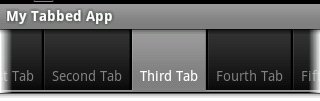
Wrap your TabWidget with a HorizontalScrollView and the tab set will be able to expand beyond the width of the screen and the user can drag the tabs left and right as required:
<?xml version="1.0" encoding="utf-8"?> <TabHost xmlns:android="http://schemas.android.com/apk/res/android" android:id="@android:id/tabhost" android:layout_width="fill_parent" android:layout_height="fill_parent"> <LinearLayout android:orientation="vertical" android:layout_width="fill_parent" android:layout_height="fill_parent"> <HorizontalScrollView android:layout_width="fill_parent" android:layout_height="wrap_content" android:fillViewport="true" android:scrollbars="none"> <TabWidget android:id="@android:id/tabs" android:layout_width="wrap_content" android:layout_height="wrap_content"/> </HorizontalScrollView> <FrameLayout android:id="@android:id/tabcontent" android:layout_width="fill_parent" android:layout_height="fill_parent" /> </LinearLayout> </TabHost> |
Set android:fillViewport to true to ensure that the tabs stretch the full width like they would without a scroller and set android:scrollbars to none to avoid having a scrollbar displayed between the tabs and the content. The scrollable tabs will be rendered with faded edges on the right and/or left depending on which direction you can scroll (see image above).